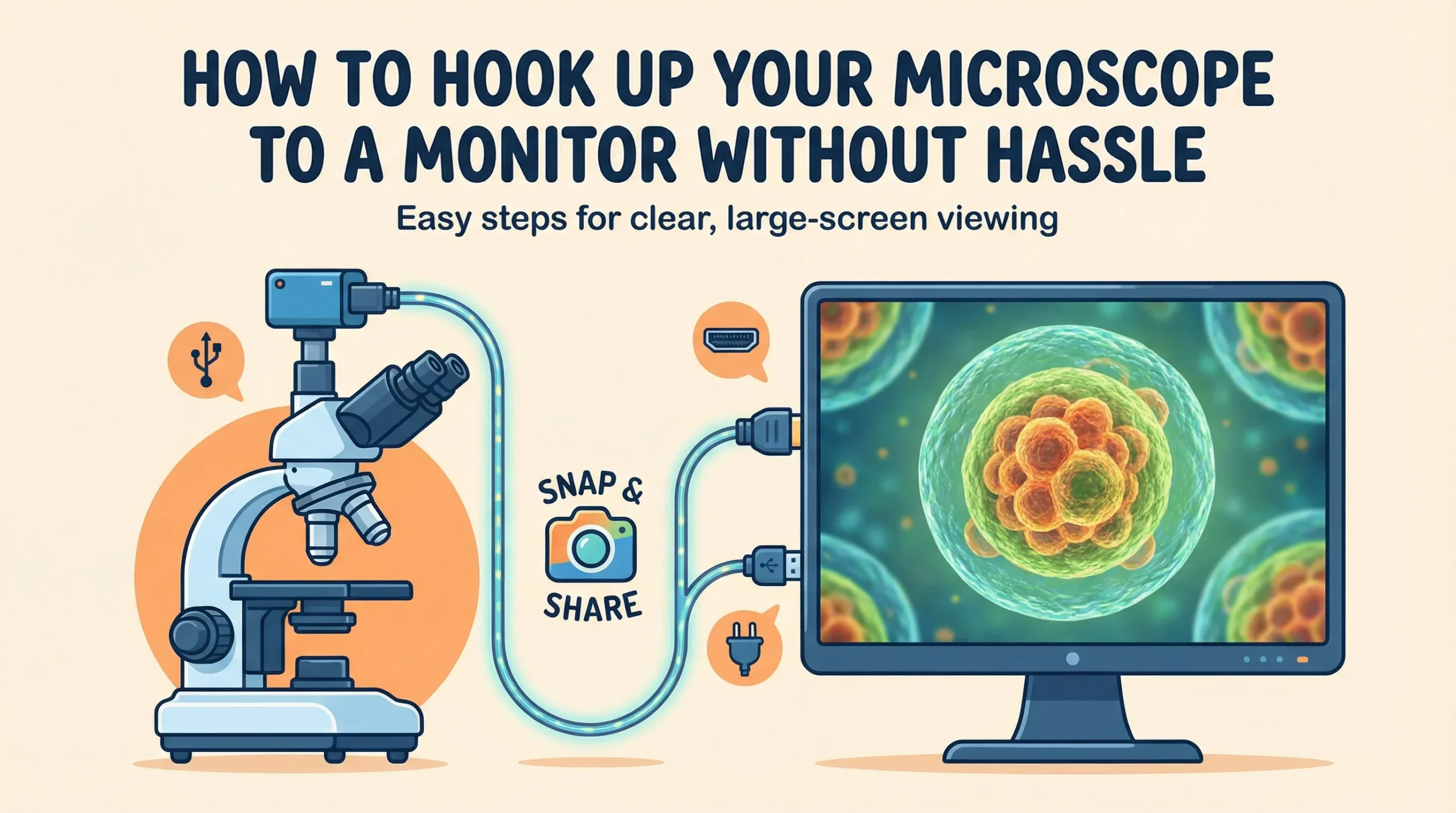
Hooking up a microscope to a monitor has become increasingly common in classrooms and laboratories worldwide. This setup not only enhances visibility but also fosters collaboration by allowing multiple viewers to observe samples simultaneously. Recent advancements, including AI integration, have driven the global microscope camera market to an expected value of $2,371.7 million by 2032. Students have shown remarkable enthusiasm for this technology, with many expressing excitement about creating videos and exploring additional samples.
Learning how to connect microscope to monitor can transform your experience, making it both engaging and highly practical.
Identify Your Microscope and Monitor
Types of Microscopes and Their Features
Understanding the type of microscope you own is essential for connecting it to a monitor. Basic microscopes rely solely on angular magnification, which limits their ability to produce detailed images. Compound microscopes, on the other hand, use multiple lenses to deliver higher-quality visuals. The objective lens captures light to form a real image, which the eyepiece magnifies further. This design has revolutionized microscopy, as demonstrated by Carl Zeiss’s advancements in compound microscope technology.
Digital microscopes simplify the process by integrating cameras directly into their design, making them ideal for monitor connections. Optical microscopes require external cameras to display images on a screen, offering flexibility for various applications.
Common Monitor Types and Connection Ports
Monitors come in various types, each with unique connection interfaces. HDMI ports are standard in modern monitors, providing high-definition image transmission. VGA ports, though older, remain common in classrooms and labs. USB ports are versatile and often used for digital microscopes. Some monitors also feature DisplayPort or DVI connections, which support high-resolution displays.
Identifying your monitor’s port type ensures you select the correct cable or adapter for seamless connectivity.
|
Monitor Type |
Connection Port |
Resolution Support |
|---|---|---|
|
Modern LED/LCD Monitor |
HDMI, DisplayPort |
Up to 4K |
|
Older CRT Monitor |
VGA |
Up to 1080p |
|
Touchscreen Monitor |
USB, HDMI |
Variable |
Why Device Identification is Crucial
Matching your microscope and monitor specifications prevents compatibility issues. Knowing whether your microscope uses USB, HDMI, or VGA ensures you choose the right connection method. Device identification also helps you avoid resolution mismatches that can degrade image quality. For example, connecting a high-resolution digital microscope to a low-resolution monitor may result in blurry visuals.
Proper identification saves time and ensures a hassle-free setup.
How to Connect Microscope to Monitor: Step-by-Step Guide
Connecting a Digital Microscope Directly to a Monitor
Connecting a digital microscope to a monitor is one of the simplest methods available. Digital microscopes come equipped with built-in cameras, making them highly compatible with modern display devices. To begin, locate the output port on your digital microscope. Most models feature HDMI or USB ports for direct connectivity. Use an appropriate cable to connect the microscope to your monitor.
For HDMI connections, ensure that both devices are powered on and set the monitor to the correct input source. If your microscope uses a USB connection, the monitor may require additional software or drivers to display the image.
Before starting, inspect the cable and connection points for any damage or debris. Clean the connectors to prevent link failures, as recommended by industry best practices. Regular maintenance, such as inspecting splices and using testing equipment like inspection microscopes, ensures a reliable connection.
Following these steps guarantees a seamless setup, allowing you to view high-resolution images directly on your monitor.
Using a Microscope Camera with an Optical Microscope
If you own an optical microscope, pairing it with a microscope camera can significantly enhance your imaging capabilities. Start by selecting a compatible camera designed for optical microscopes. These cameras often use advanced CMOS sensors, which provide faster speeds and higher resolutions compared to older CCD sensors. Attach the camera to the microscope’s eyepiece or trinocular port, ensuring a secure fit.
Once connected, link the camera to your monitor using the appropriate cable, such as HDMI or USB.
Pay attention to the optical lens design of your microscope, as it plays a crucial role in achieving clear and detailed images. For optimal performance, especially in applications like cell imaging, ensure that the camera and microscope are properly aligned. This setup not only improves image clarity but also allows you to capture and display intricate details on your monitor. Regularly inspect and clean the camera and lens to maintain image quality and prevent connection issues.
Connecting via a Computer for USB-Compatible Microscopes
Many USB-compatible microscopes require a computer as an intermediary device to connect to a monitor. Begin by installing the necessary software or drivers provided by the microscope manufacturer. Plug the microscope into your computer using a USB cable. Open the software to access the live feed from the microscope. To display the image on a monitor, connect the computer to the monitor using an HDMI or VGA cable.
Adjust the display settings on your computer to ensure the image appears on the monitor.
This method offers additional flexibility, as you can use the computer to capture images, record videos, or enhance the display with software tools. However, ensure that your computer and monitor meet the resolution requirements of the microscope to avoid blurry or distorted visuals. Documenting your setup and testing configurations, as suggested by TIA/EIA and ISO/IEC standards, can help you troubleshoot any issues and maintain a consistent connection.
Ensuring Compatibility Between Microscope and Monitor
Understanding Connection Interfaces (HDMI, USB, VGA, etc.)
The connection interface plays a pivotal role in linking your microscope to a monitor. HDMI, USB, and VGA are the most common options available, each offering distinct advantages. HDMI provides high-definition image transmission, making it ideal for modern monitors. USB interfaces are versatile and often used for digital microscopes, enabling data transfer and power supply through a single cable. VGA, though older, remains a reliable choice for legacy monitors in classrooms and labs.
Research on LCD televisions highlights the importance of compatibility in technology markets. Devices with multiple connection ports create indirect network effects, enhancing their overall utility and desirability. This principle applies to microscope-to-monitor setups as well.
Ensuring compatibility between interfaces not only simplifies the connection process but also improves the overall user experience. When Choosing a connection interface, inspect your monitor and microscope for available ports. Match the interface type to avoid compatibility issues. For example, connecting a USB-compatible microscope to a monitor with only HDMI ports may require an adapter.
Proper planning ensures a seamless setup and prevents unnecessary delays.
Using Adapters and Converters for Non-Compatible Devices
Adapters and converters are essential tools for bridging the gap between non-compatible devices. If your microscope uses a USB interface but your monitor only supports HDMI, a USB-to-HDMI adapter can resolve the issue. Similarly, VGA-to-HDMI converters are available for older microscopes and monitors.
These devices translate signals between different formats, ensuring compatibility without compromising image quality. When choosing an adapter or converter, prioritize quality. Low-quality adapters may introduce signal loss or lag, affecting the clarity of the displayed image.
Look for devices with high-speed data transfer capabilities and robust construction. Regularly inspect your adapters for wear and tear to maintain a reliable connection.
Adapters also offer flexibility in multi-device setups. For instance, you can connect a microscope to a computer using USB and then link the computer to a monitor via HDMI. This approach allows you to leverage the computer’s processing power for image enhancement while displaying the output on a larger screen.
Checking Power and Resolution Requirements
Power and resolution requirements are critical factors in microscope-to-monitor setups. Microscopes with built-in cameras often require external power sources, while USB-powered models draw energy directly from the connected device.
Ensure your monitor and microscope meet the power specifications to avoid interruptions during use.
Resolution compatibility is equally important. A high-resolution microscope paired with a low-resolution monitor may result in blurry visuals. The resolution limit of a digital microscope system depends on optical resolution, image sensor resolution, and display resolution. Optical resolution is influenced by the numerical aperture and light wavelength, while sensor resolution depends on pixel size and magnification.
Display resolution is determined by the monitor’s pixel size and lateral magnification.
|
Objective (Numerical Aperture) |
Resolution Limit (Micrometers) |
Projected Size (Micrometers) |
Required Pixel Size (Micrometers) |
|---|---|---|---|
|
10x (0.30) |
0.92 |
9.2 |
4.6 |
|
20x (0.50) |
0.55 |
11.0 |
5.5 |
|
40x (0.75) |
0.37 |
14.8 |
7.4 |
|
100x (1.30) |
0.21 |
21.0 |
10.5 |
To ensure compatibility, match the resolution of your microscope to the monitor’s display capabilities. High-resolution monitors, such as those with 4K support, are ideal for detailed imaging. Testing your setup beforehand can help identify potential issues and optimize performance.
Troubleshooting Issues When Connecting to a Monitor
Fixing No Signal or Display Problems
Encountering a “No Signal” message on your monitor can be frustrating, but resolving it often involves a few straightforward steps. First, confirm that both your microscope and monitor are powered on. Check the input source on your monitor and ensure it matches the connection type (e.g., HDMI or VGA). If the issue persists, inspect the cable for damage or loose connections.
A faulty cable can disrupt the signal, so replacing it with a high-quality alternative may resolve the problem.
Sometimes, the issue lies in the settings of your microscope or camera. For digital microscopes, verify that the output resolution matches the monitor’s supported resolution. Mismatched settings can prevent the monitor from displaying the image. If you’re using a computer as an intermediary, ensure the correct display settings are selected, and update any necessary drivers. Testing the setup with another monitor can help identify whether the problem is with the monitor or the microscope.
Resolving Image Quality and Lag Issues
Poor image quality or lag can hinder your ability to observe samples effectively. Start by checking the resolution settings on your microscope or camera. High-resolution microscopes require monitors capable of supporting their output. If the monitor’s resolution is too low, the image may appear blurry or pixelated.
Adjusting the resolution settings to match the monitor’s capabilities can improve clarity.
Lag issues often stem from the connection type or cable quality. USB connections, while versatile, may introduce delays if the cable is damaged or too long. Opt for shorter, high-speed cables to minimize lag. For HDMI connections, ensure the cable supports the required bandwidth for high-definition transmission. Regularly clean the connectors to prevent dust or debris from interfering with the signal.
If lag persists, consider upgrading to a monitor with a faster refresh rate.
Addressing Cable or Adapter Connection Failures
Cables and adapters play a critical role in connecting your microscope to a monitor, but they are also prone to failure. Common issues include short circuits, open connections, and wear or corrosion. Short circuits often occur due to moisture or damaged insulation, while open connections result from broken electrical paths.
Wear and corrosion increase resistance, leading to signal loss or overheating.
To troubleshoot, inspect the cable or adapter for visible damage. Replace worn or corroded components with high-quality alternatives. When using adapters, ensure they are compatible with both your microscope and monitor. For example, a USB-to-HDMI adapter must support the resolution and power requirements of your devices.
The table below highlights factors that can affect cable and adapter reliability:
|
Factor |
Description |
|---|---|
|
Base Failure Rate |
The inherent failure rate based on design and materials. |
|
Active Number of Pins |
More pins increase complexity but can reduce reliability. |
|
Environmental Factor |
Temperature and humidity can degrade performance over time. |
|
Mating/Unmating Factor |
Frequent connections and disconnections can lead to wear and reduced lifespan. |
Regular maintenance can extend the lifespan of your cables and adapters. Store them in a dry, cool environment and avoid excessive bending or pulling. Testing your setup with spare cables or adapters can help identify the root cause of connection failures.
Alternative Setups for Displaying Microscope Images
Using a Smartphone as a Display
Smartphones offer a convenient and portable solution for displaying microscope images. Modern smartphone cameras possess impressive resolving capabilities, making them comparable to traditional benchtop microscopes for observing biological tissues and cells. However, the imaging contrast may appear slightly lower due to the illumination setup. You can enhance the image quality by using deep learning methods, which improve contrast without introducing artifacts.
To use your smartphone as a display, attach it to the microscope using a compatible adapter. These adapters securely hold the smartphone in place, aligning its camera with the microscope’s eyepiece. Once connected, open the camera app to view the magnified image. Some advanced apps even allow you to capture and edit images directly on your smartphone. This setup is ideal for quick observations or sharing findings with others in real time.
DIY Solutions for Older Microscopes
Older microscopes often lack built-in cameras or modern connectivity options, but you can still adapt them for digital displays with a few creative solutions. One popular method involves attaching a webcam or smartphone camera to the eyepiece. Use a 3D-printed or adjustable mount to secure the device in place.
Ensure the camera lens aligns perfectly with the microscope’s optical path to achieve clear images.
Another option is to retrofit your microscope with a digital camera module. These modules are available in various resolutions and can be connected to a monitor or computer via USB or HDMI. This approach breathes new life into older equipment, allowing you to capture and display high-quality images without investing in a new microscope.
Exploring Wireless Display Options
Wireless display technology offers a clutter-free alternative for connecting your microscope to a monitor. Devices like wireless HDMI transmitters or Wi-Fi-enabled cameras eliminate the need for physical cables, providing greater flexibility in your workspace.
To set up a wireless connection, attach a compatible camera to your microscope and pair it with a wireless display receiver connected to your monitor.
This setup is particularly useful in classrooms or collaborative environments where multiple viewers need access to the same image. Wireless solutions also support high-definition streaming, ensuring you don’t compromise on image quality. Regularly update the firmware of your wireless devices to maintain compatibility and performance.
Connecting your microscope to a monitor can transform how you observe and share samples. Start by identifying your devices and their connection interfaces. Ensure compatibility by matching ports and resolutions, and follow the step-by-step guide to establish a reliable connection.
With the right approach, this process becomes straightforward and rewarding. You’ll gain clearer visuals and a collaborative viewing experience, making your microscopy journey more engaging and productive.